Camel TUI Screenshots and Demo Recordings
The TUI can show itself: take a screenshot of the screen, explain it with captions while you present, and record a session as an animated GIF for documentation, a blog post or a pull request. A recording is scripted as a .tape file that the TUI plays, so it is repeatable, and an AI agent can write and run it as well as you can.
See Camel TUI for getting started and the other pages.
Key Features
-
Screenshots — save the screen as SVG, plain text and ANSI art
-
Presenting — captions, highlights and the keys you press, on the screen
-
Live recording — record what you do as a
.tapefile -
Scripted recording — play a
.tapein the TUI and record it, with commands for captions, highlights and tabs -
Converting to GIF — turn the recording into an animated GIF
Screenshots
Press Shift+F5, or open the F2 actions menu and choose Take Screenshot. The screen is saved in the current directory in three formats, named camel-tui-screenshot-<timestamp>:
| File | Use it for |
|---|---|
| Documentation and web pages: the screen with its colors and fonts, sharp at any size. Convert it to PNG with a browser or a tool such as |
| Plain text, for an issue, a chat or an AI agent to read. |
| The text with its colors as ANSI escape codes, which |
A message at the bottom of the screen names the saved file. A tape takes a screenshot with the Screenshot command, and an AI agent with the tui_action tool (screenshot).
Presenting
The F2 actions menu has what helps when you show the TUI to others, in a meeting or a screen share:
-
Caption… — shows a message in the middle of the screen with a typewriter animation, to say what comes next
-
Show Keystrokes — shows each key you press at the bottom of the screen, so viewers can follow along
-
Settings… — switches the theme, such as a light theme for a projector
An AI agent connected over MCP can present too: it shows captions (tui_show_caption), highlights what it talks about (tui_locate and tui_draw_shape), and switches tabs (tui_navigate). See Camel TUI and AI Agents.
Live Recording
Use the F2 actions menu and select Start Tape Recording to start recording your session as a .tape file. Select Stop Tape Recording to stop. The tape captures your keystrokes with timing, producing a script that can be played back with --record (see below), edited, or converted to an animated GIF.
An AI agent connected over MCP records a tape of what it does with tui_tape_start and tui_tape_stop.
While a tape records, and while --record plays one, actions that ask first go ahead at once: quitting, stopping an integration, a file an AI writes, a tool an ACP agent runs, deleting or converting a file. The model or the tape does everything itself, and the keys a tape plays, like those an MCP client sends, never answer a dialog that asks the user to confirm. Leaving the editor with unsaved changes still asks, so save before leaving it.
Scripted Recording
Use the --record flag to play a .tape file in the TUI and record what happens on screen:
camel tui orders --record=demo.tapeThe .cast file is written next to the tape, with the .tape suffix replaced by .cast. Recording is headless: the TUI is driven entirely by the tape rather than by your terminal, so no keyboard input is read and nothing is drawn on screen. The integrations are the ones running on your machine, as with a plain camel tui, so start them before recording, and name the integration to select it from the start (orders above).
The tape is played by the TUI itself: the keys go to the TUI as if typed, and on top of the VHS commands there are commands for the TUI, such as showing a caption, highlighting text on the screen, or switching tab by name. When the tape ends, the TUI quits and the recording is saved. Problems in the tape, such as an unknown command or a Wait that timed out, are printed as Tape: … warnings, and the rest of the tape still plays.
The recorded terminal is 200x50 by default, which is wider than a documentation page can display. Use --record-size to record at a size that fits, and --record-fps or --record-duration to control the capture rate and the cut-off:
camel tui orders --record=demo.tape --record-size=120x32 --record-duration=60000--record-duration is in milliseconds and stops the recording even when the tape is still playing, so give a long tape enough time.
--record cannot be combined with --web. Recording drives a headless TUI from the tape, and the recording configuration applies to the whole process, so every browser session would be recorded into the same .cast file. Camel rejects the combination with an error instead.
Tape commands
A tape has one command per line. Lines starting with # are comments. Durations are written as 500ms, 2s or 1.5s; a bare number is seconds. Text is in double quotes, where \n is a new line and \" a quote. Most commands take a timing as Command@duration.
| Command | Description |
|---|---|
| Presses the key. A count repeats it ( |
| Presses the key with the modifiers, which can be combined ( |
| Types the text, one character at a time, 50ms apart. |
| Pauses the tape, so the viewer can read the screen. |
| Waits until a line on the screen matches the regular expression, up to 15 seconds ( |
| Saves a screenshot of the screen, as the F2 actions menu does. |
| Plays the commands of another tape, relative to this one. Useful for a common opening. |
| Shows a caption on the screen with a typewriter animation, which stays until a key is pressed. |
| Highlights the first place on the screen showing the text, such as a key in the footer or a node in the diagram. |
| Removes the highlights. |
| Switches to the tab, such as |
| Selects the integration by its name or PID. |
| Runs an entry of the F2 actions menu by its name, such as |
| Switches the theme, such as |
The Set, Output and Require commands of VHS are skipped: the recording takes its size and file from the --record options. Hide and Show are not supported, as everything the TUI shows is recorded.
Writing a tape
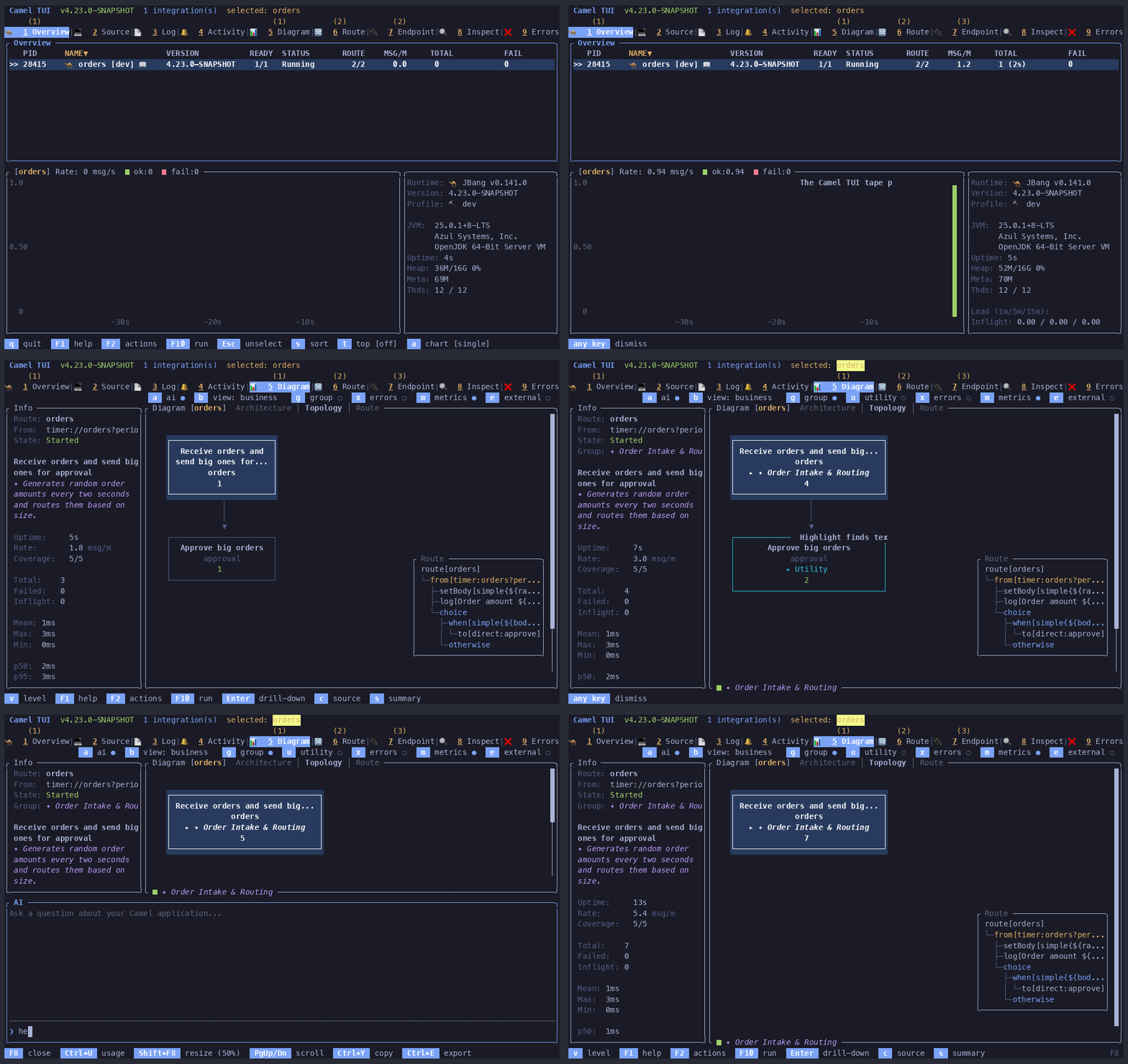
The tape below opens the Diagram tab of the orders integration, explains the screen with captions and a highlight, and asks the AI panel a question. Every step that depends on the TUI being ready waits for it on the screen first, so the tape plays the same on a slow machine:
# wait for the integration to be discovered
Wait@30s /orders/
Caption@3s "The Camel TUI tape player"
Sleep 3s

Tab "Diagram"
Wait /Topology/
Sleep 1s
Highlight@3s "orders"
Caption@3s "Highlight finds text on the screen"
Sleep 3s

# the AI panel
F8
Wait /Ask a question/
Type@80ms "hello"
Sleep 1500ms
F8
Sleep 1s
Recorded with camel tui orders --record=demo.tape --record-size=120x32 and converted with agg, it plays as:
A few tips for a tape that reads well:
-
Start with a
Waitfor something the first screen shows, as the TUI needs a moment to find the running integrations. -
After each
Caption@<n>s,Sleepfor as long, or the next keys play while the caption is still being typed. -
Pair a
Highlightwith aCaptionthat says what the viewer looks at, and highlight a key in the footer before pressing it, such asHighlight@2s "Shift+F8"followed byShift+F8. -
Use
Action "show-keystrokes"at the start to show each key press at the bottom of the screen. -
Record at the size the page shows, such as
--record-size=120x32, so text is not scaled down.
Give each demo its own theme, so the GIFs on a page do not all look the same. --theme sets the theme for that run only and leaves your saved theme as it is, as in camel tui orders --theme=tokyo-night --record=demo.tape, and a Theme "nord" line in the tape switches it during the recording. Light themes such as catppuccin-latte stand out between dark ones. See Theme for the list. In a demo of the AI or shell panel, --panel-theme gives that panel a theme of its own for the run, such as --panel-theme=light on a dark theme, so the viewer sees where the panel starts. |
An AI agent can write and run the tape itself: the commands for the TUI are the same as the MCP tools of the TUI (tui_show_caption, tui_locate with tui_draw_shape, tui_navigate, tui_action and tui_set_theme), and tui_get_screen tells what text to Wait for. Run the tape, read the Tape: warnings, fix the tape, and run it again. |
Converting to GIF
Convert the .cast recording with agg:
agg demo.cast demo.gif
agg --speed 1.5 --font-size 14 --last-frame-duration 3 demo.cast demo.gif
The --speed option plays the recording faster, and --idle-time-limit caps every pause at that many seconds (5 by default), so raise it when a pause is there for the viewer to read a caption.
A tape that only uses VHS commands can also be turned into a GIF with VHS directly (vhs demo.tape), which runs the TUI in a terminal of its own. The commands for the TUI, such as Caption, Highlight and Tab, work with --record only.