Camel TUI Local Models
The AI panel (F8) works with a model running on your own machine, through Ollama or any OpenAI-compatible server, so no API key is needed and nothing has to leave your machine. A local model spends its time differently from a hosted one, and the TUI shows you where.
See Camel TUI for getting started and the other pages.
Key Features
-
Ollama — auto-detected at
localhost:11434, with the models that work well -
OpenAI-compatible servers — LM Studio, vLLM, llama.cpp and others
-
A smaller tool set — local models get the core tools, which roughly halves the prompt
-
What a question costs — load, prefill and decode, the prompt cache and the context window
-
Ollama tab — the loaded model, tokens per second, cache hit and context fill, live
Using Ollama (local, no API key)
Ollama at localhost:11434 is auto-detected, so pulling a model is all it takes:
ollama pull qwen3.6:35b-a3b
camel tui
On a Mac with Apple Silicon and Ollama 0.40 or later, pull the MLX build qwen3.6:35b-mlx instead: the same model, with faster prompt processing and answers on the M chips.
Then press F8. How to install Ollama, which models work well (at least 14B, with tool calling; a mixture-of-experts model such as qwen3.6:35b-a3b is the fastest) and how the context window is chosen are described in AI Providers and Local Models, shared with camel ask and the other AI commands.
Using an OpenAI-compatible local server
Set LLM_API_KEY and LLM_BASE_URL to connect to any OpenAI-compatible server (LM Studio, vLLM, llama.cpp, GPT4All, …), see OpenAI-compatible local servers.
The panel uses the first model the server lists on /v1/models. To use another one, run /model <name> in the panel (/model alone lists what the server offers), set AI Model in F2 → Settings, or set camel.tui.ai.model. The model must support tool calling, otherwise the panel answers from training data instead of inspecting your integration. When a request fails, the panel shows the HTTP status and the server’s error message, for example a model that the server does not host.
Tool set for local models
Every question sends the definitions of the tui_* tools the model may call, and a local model pays for each of them in prompt-processing time. The panel therefore sends only the core set of tools (state, tables, logs, errors, diagrams, topology, processor details, catalog docs, traces, spans, route control, sending messages, source files, infra services, navigation, log level and filters) to Ollama and to any provider on localhost, which roughly halves the prompt. Hosted providers get every tool, including the drawing, animation and automation tools. Use /tools full in the panel to send all tools to a local model too, /tools core to trim the set for a hosted one, pick AI Tools in F2 → Settings, or set camel.tui.ai.tools in .camel-cli.properties. Ollama requests also ask the server to keep the model loaded for 30 minutes and for a context window of 32k or 64k (see Working with a local Ollama model; OLLAMA_CONTEXT_LENGTH overrides it), so follow-up questions reuse the cached prompt instead of reloading the model.
Tool groups from the selected integration
On top of the core set, the panel loads the tool groups the selected integration needs, read from the status it writes while it runs:
| Group | Loads when the integration has | What the model gets |
|---|---|---|
| a datasource, a |
|
| OpenTelemetry, enabled message tracing, or Micrometer | a line pointing at |
| a circuit breaker in a route, or circuit breakers in the Resilience4j or Fault Tolerance status | a line naming the routes with a circuit breaker and pointing at the Circuit Breaker tab |
| Rest DSL services or platform-http endpoints, or a |
|
Each loaded group adds one line at the end of the system prompt. The groups are read again only when you select another integration or the selected one reloads its routes (after a reload the groups only grow), so the tools and the prompt stay the same from question to question and Ollama keeps reusing the cached prompt. An integration without any group yet is read again on each question, since one that just started may not have written its status completely. With all four groups the static prefix grows by about 800 tokens.
The full tool set (/tools full and hosted providers) is not affected by the groups. /tools and /context show the loaded groups.
Working with a local Ollama model
A local model is not a slower version of a hosted one; it spends its time differently, and the TUI shows you where. This section explains what a question costs with Ollama and which knobs matter, with figures measured on an Apple M4 Pro (64 GB) running qwen3.6:35b-a3b.
How a question is spent. Ollama answers in three phases, and every timing the TUI shows maps to one of them:
-
Load: if the model is not in memory (first question, the keep-alive expired, or a request asked for a different context size) Ollama starts a runner and loads the weights: 10 to 20 seconds for a 22 GB model. The TUI asks Ollama to keep the model loaded for 30 minutes after each request.
-
Prefill: the prompt (system prompt, tool definitions, conversation history, your question) is processed in one batch, at roughly 600 to 700 tokens per second when nothing is cached.
-
Decode: the answer is generated token by token, at 50 to 60 tokens per second for this model.
The wait before anything appears, the time to first token, is load plus prefill. A cold first question therefore takes 20 seconds before the first word; a warm one under a second.
One question, many requests. The panel answers by calling the tui_* tools, and every tool call the model makes costs a new request that sends the whole prompt again. A simple question can take 3 to 13 requests. This is affordable only because Ollama caches the prompt prefix: the system prompt, the tool definitions and the history are identical from one step to the next, so each step prefills only the new tokens and takes about half a second. Across a session the cache hit is typically above 90%. The Ollama tab shows the request count per question as ×N and the cache hit per question; a question with a high count and a short answer is the model exploring, which a smaller, sharper tool set reduces (see Tool set for local models).
The context window. The TUI decides the window it asks Ollama for (num_ctx) once per model:
-
OLLAMA_CONTEXT_LENGTHin the environment wins when set. -
If the model is already loaded, its window is adopted (raised to 32k when smaller), so the TUI never makes Ollama reload a model another client is using. A request with a different
num_ctxcosts a cold start and throws away everyone’s prompt cache. -
Otherwise 64k when the model’s weights plus the KV cache of a 64k window fit the machine’s memory, computed from what
ollama showreports (layers, KV heads, head size), else 32k. Overshooting is worse than being conservative: Ollama then moves layers to the CPU and generation slows to a crawl.
The static prefix of system prompt and core tools is about 4.5k tokens, and each question with tool calls adds another 2k to 4k of history. The panel compacts the history once the prompt Ollama measured for the last request passes half the window, capped at half of 64k even when a larger window was adopted: every token of history is prefill time again after a cache loss (an idle unload after 30 minutes, another client, a restart), and 64k at a few hundred tokens per second is already well over a minute. Compacting rewrites the history, which invalidates Ollama’s prompt cache, so the request after a compaction prefills the whole prompt again: about 40 seconds for a 21k-token prompt. The panel therefore compacts local history rarely and then thoroughly, down to about a quarter of the window, and prints one line saying what it did and how long the next reply will take to start. /compact does the same on demand with the same line; /context shows the window, the compaction point and the last measured prompt; the panel title shows the fill as ctx 34%.
Choosing the model. With no camel.tui.ai.model set the panel takes llama3.2 when it is installed, otherwise the first installed model; run /model <name> in the panel or set AI Model in F2 → Settings to pin one. The model must support tool calling and should have at least 14B parameters; a mixture-of-experts model such as qwen3.6:35b-a3b prefills several times faster than a dense model of similar quality, which is what matters for a tool-heavy prompt. F2 → Run Doctor shows whether Ollama was found, which models are installed and whether they are large enough.
Where to look. The Ollama tab is the instrument for all of the above: tokens per second live and per request, time to first token with cold starts marked, cache hit, how full the context window is and how it grows per question, GPU and process load, and one line per question with the requests it took, the question being answered right now on top with working as its reason and its time counting up, and a footer with the average per question. In the AI panel, /context prints what the next request will cost, /usage and Ctrl+U the session totals per question.
Remote and containerised Ollama. Everything above applies to an Ollama on another host or inside camel infra run ollama as well, with two differences: the container runs without GPU acceleration, and the live runner state and host load on the Ollama tab need the server on the same machine.
For the wider picture see the blog posts We had a frontier AI coach a small local model through Camel on what a local model can do with Camel and what was changed to help it, and Observe Your Camel AI Routes with GenAI OpenTelemetry on observing routes that call Ollama.
Ollama tab
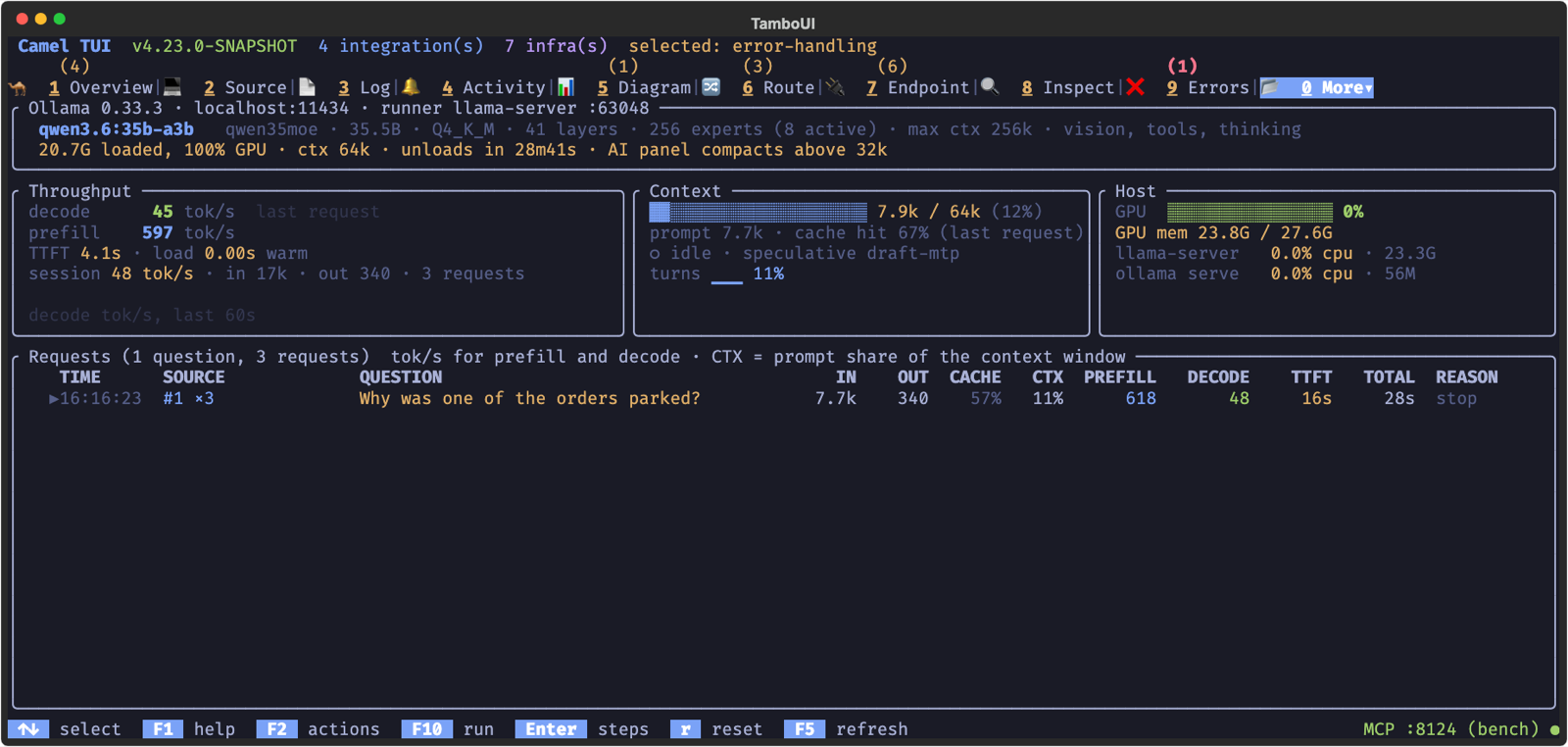
The Ollama tab (under More, in the AI group) shows how the model served by a local Ollama is performing, in the spirit of an LLM dashboard. It works with or without a running integration: it finds Ollama at localhost:11434, at the address of camel infra run ollama, or at the endpoint the AI panel (F8) is using. The tab is listed only while an Ollama server answers; the TUI checks every ten seconds, so it appears shortly after ollama serve starts.
-
Model — the loaded model with its family, parameters, quantization, layers, experts (and how many are active per token for a mixture-of-experts model), how much of it sits in GPU memory, the allocated context length and when Ollama will unload it. With no model loaded, the installed models are listed instead.
-
Throughput — decode and prefill tokens per second, live while the model is generating and otherwise from the last request; time to first token and load time (a load of a second or more is a cold start); session averages and a sparkline of the decode rate.
-
Context — how full the context window is, the share of the prompt served from Ollama’s cache, whether the model is working or idle, the speculative decoding method in use, and a per-turn trend of how much of the window each AI panel prompt filled, with the session peak and the compactions seen.
-
Host — GPU utilization and memory (Apple silicon through
ioreg, NVIDIA throughnvidia-smi), and CPU and memory of the Ollama server and its model runner. -
Requests — one line per question asked in the AI panel (a question with tool calls costs one request per step; Enter unfolds the steps) with the question text, prompt and generated tokens, cache hit, the share of the context window reached, prefill and decode tokens per second, time to first token, the time you waited and the stop reason. Calls made by Camel routes are listed as their own lines.
Two kinds of requests appear in the log. Questions asked in the AI panel with Ollama as the provider come with the timings Ollama reports for each request (prompt evaluation, generation, model load, total). Calls made by Camel routes through camel-langchain4j-chat, camel-openai or camel-spring-ai-chat appear when the integration runs with GenAI observability (--observe, or --dep=camel:ai-observability), tagged with the route id; Camel records tokens and duration for those, not the phase split.
The live figures, the context panel and the host panel need the model runner on the same machine: Ollama starts a llama-server process per loaded model and the tab reads its slot state a few times a second. Against a remote or containerised Ollama the tab keeps the model, per-request and session data and says which panels are unavailable. A model with safetensors weights that Ollama runs on MLX (Apple silicon) is served by Ollama’s own runner instead, which has no slot state: the throughput and context panels then show the figures of the last request.
Press r to reset the request log and the session totals, F5 to refresh immediately. The same data is available to AI agents through the tui_get_ollama MCP tool. For what the figures mean for the AI panel and which knobs to turn, see Working with a local Ollama model.