Camel TUI and AI Agents
The TUI is also a tool for AI coding agents: over MCP an agent sees the running integrations as you do and can act on them, and over ACP a coding agent such as Claude Code drives the TUI’s AI panel. Every change to a file waits for your confirmation.
See Camel TUI for getting started and the other pages.
| Not sure whether you want the AI panel, a coding agent or an MCP server? See Camel TUI Ways to Use AI for the options side by side. |
Key Features
-
Same view as you — routes, statistics, traces, errors, logs and sources
-
MCP server — camel tui --mcp, on localhost only
-
Coding agents over ACP — a coding agent drives the AI panel
-
Navigate, control and teach — switch tabs, control routes, draw on the screen
-
Edits you confirm — or watch them typed in the editor (live mode)
-
Example workflows — what to ask an agent
Why This Matters
When an AI agent connects to the TUI via MCP, it gains the same level of visibility that you have — and can act on it. The agent can:
-
Read everything — route topology, statistics, message traces, errors, logs, source files, health checks, and JVM metrics
-
Navigate and control — switch tabs, select routes, start/stop routes, send test messages, change log levels
-
Teach and present — the AI can control the TUI screen to walk you through concepts, highlight areas of interest, draw annotations, and take screenshots. It can circle a failing route, draw arrows between connected endpoints, and add explanatory text labels — turning the TUI into a live whiteboard for pair-programming
-
Self-troubleshoot — when something fails, the AI can autonomously inspect the error, read the message trace, correlate with route statistics, and produce a diagnostic report with annotated screenshots showing exactly where and why the failure occurred
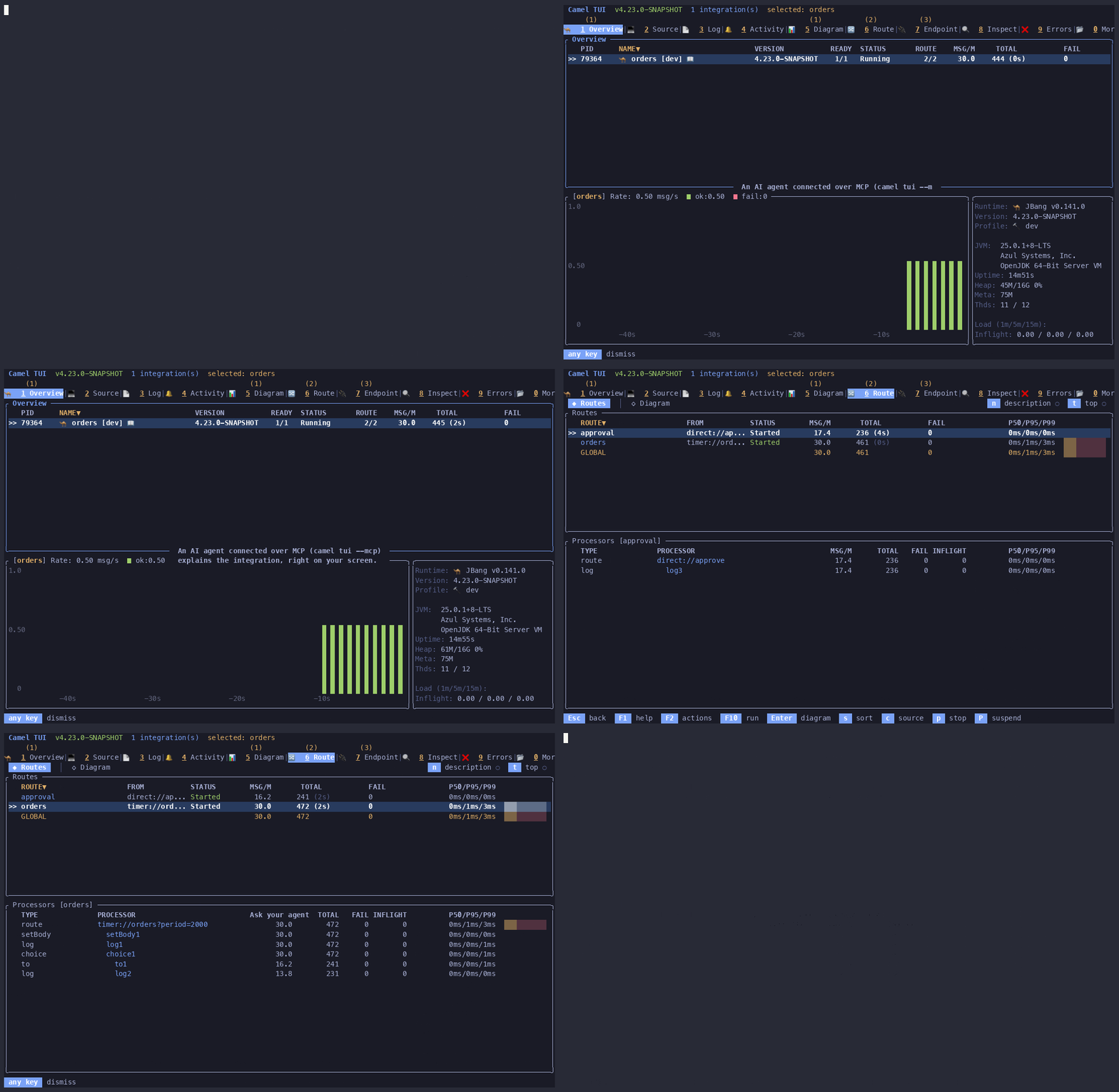
Enabling MCP
camel tui --mcpThis starts an MCP server on localhost:8123 (configurable with --mcp-port). The server is bound to 127.0.0.1 only — it never listens on external interfaces.
When MCP is active, the TUI footer shows the connection status: the port and the name of the connected client, with ● while it calls tools and ○ while it is idle (it stays connected while idle, as an MCP client only sends a request when it uses a tool), or ✗ when no client has connected yet or the client closed its session. Use F2 → MCP Info to see server details and MCP Log to view the tool call history.
Status document resources
Every running integration keeps a full status document in ~/.camel/<pid>-status.json, written once a second by camel-cli-connector. The tabs show a digest of it; the MCP server exposes the whole document as resources so an agent can fetch exactly the section it needs instead of paging through tabs:
-
camel://log/<pid>— the last 200 lines of the integration’s log (~/.camel/<pid>.log);camel://log/<pid>?lines=<n>for a different tail length (up to 5000). The Log tab shows only a window of this file, so an agent that needs to know which lines the user is looking at should use thetui_get_screentool instead. -
camel://status/<pid>— the whole document -
camel://status/<pid>/<section>— one top-level section, for examplecontext(name, version, state, uptime, start timestamp, statistics),runtime,routes,endpoints,healthChecks,properties,main-configuration,routeController,memory,threads,gcorevents
resources/list enumerates the log, the document and its sections for every monitored integration, and resources/templates/list describes the URI shapes. The same data is available to the F8 AI panel (and as an MCP tool) through tui_get_status, which takes a section argument and returns that section only; pass sections to list what the document contains. Sections such as events can be large, so ask for the one you need.
Using a coding agent (ACP)
Instead of talking to a model directly, the AI panel can hand the conversation to an external coding agent that speaks the Agent Client Protocol (ACP). The TUI starts the agent as a subprocess, gives it the TUI’s own MCP server, and shows the agent’s answer, tool calls and questions in the panel. The agent drives the TUI through the same tui_* tools that external MCP clients use, and can also read and edit your route sources with its own tools.
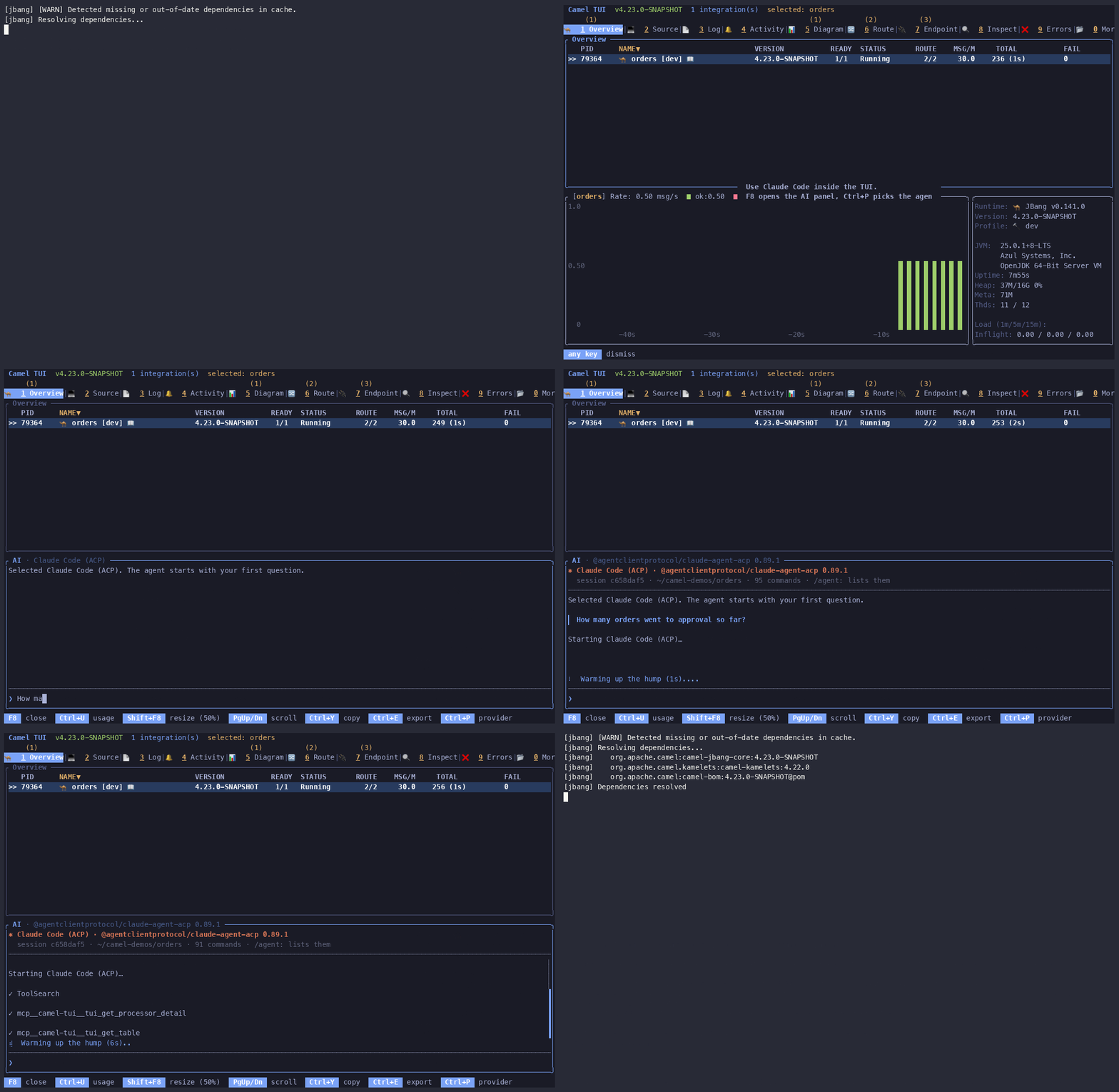
Any agent that speaks ACP works. Press Ctrl+P in the AI panel and pick one of the agents known to work, or acp:custom to run any other ACP agent:
| Provider | Command the TUI runs | Before the first question |
|---|---|---|
|
| log in with the |
|
|
|
|
| set |
|
| set |
|
|
|
|
| configure the model key in DeepSeek Harness (developer preview) |
| the value of | depends on the agent |
The npx entries need Node.js 22 or newer (the Claude adapter requires it). The agent starts with your first question; the first start can take a while when npx has to download the adapter. Once the session is open the panel shows a two-row header with the agent’s coloured glyph, the agent’s name and version, the session id, the working directory and the number of commands it advertises. Use F2 → Settings to make an agent the default provider or to set the custom command (a plain command line split on whitespace, no quoting).
The MCP server is started automatically on a random localhost port when an agent needs it, so --mcp is not required. F2 → MCP Info shows the port and the tool calls the agent makes. Like the server started with --mcp, it is bound to 127.0.0.1 with no authentication, and it rejects requests that carry an Origin header (so a web page cannot reach it) or that are not JSON.
Permissions: calls to the TUI’s own tools are approved without asking, as for the AI panel’s own model. The TUI asks you itself before the few calls that need it, such as a file write, a message to an endpoint the integration does not have, SQL that is not a SELECT, or a Groovy expression (see What asks first). For anything the agent wants to do with its own tools, such as editing a file or running a command, a popup shows the agent’s options; Enter selects, Esc rejects that one call and lets the turn continue, and Ctrl+C cancels the whole turn. While a tape records, or --record plays one, nothing asks. The preamble tells the agent to edit route sources through camel_write_file rather than its own file tools, so that you see the diff or watch the edit; when it still asks to edit a file directly, the popup says so and Esc sends it back to camel_write_file. "Always allow" choices are remembered by the agent for the session. The model, reasoning settings and any "always allow" rules are configured in the agent, not in the TUI; /model only reports the agent in use.
The agent’s own slash commands, for example Claude Code skills, appear as /agent:<name> in the / completion hints once the session is open; /agent: alone lists them. /agent:<name> … always reaches the agent, even when the name is also a panel command (/agent:clear clears the agent’s context, /clear the panel). Anything else starting with / that is not a panel command is sent to the agent as is.
The panel’s own /retry resends the last question (or /agent: command) to the agent. /context shows the agent, its session, working directory, MCP server and the size of the preamble instead of a model history, and /prompt shows that preamble, sent once per session ahead of the first prompt. /compact and /tools do not apply while an agent is selected: the agent manages its own history and reaches the camel-tui tools through the MCP server; the panel says so and points to /agent:compact when the agent offers that command.
If the agent asks for authentication and can sign you in itself, the TUI triggers that flow once; otherwise the panel shows the login command from the table above.
Gemini CLI, Google Antigravity and Pi are not offered as presets. Gemini CLI stopped serving personal Google accounts in June 2026, Antigravity’s CLI has no ACP mode yet, and Pi’s community adapter does not pass MCP servers through. Any ACP agent can still be tried through acp:custom. |
Connecting an AI Agent
To connect Claude Code to the TUI, add the MCP server to your project configuration (.mcp.json in your project root):
{
  "mcpServers": {
    "camel-tui": {
      "type": "url",
      "url": "http://localhost:8123/mcp"
    }
  }
}
What AI Agents Can Do
The MCP server exposes two kinds of tools. The camel_ tools are the Camel authoring set shared with the camel mcp server (see Camel MCP Server): catalog documentation with the endpoint URI rules and the simple syntax (camel_catalog_doc, camel_catalog_find), source validation (camel_validate_source), reading and writing the source files (camel_get_files, camel_write_file), running an integration in dev mode and controlling it (camel_run, camel_control), its log and failed exchanges (camel_get_log, camel_get_errors), expression evaluation (camel_eval_expression) and error diagnosis (camel_error_diagnose). They are defined once in the Camel CLI, so an agent gets the same tools, names and answers through either server; in the TUI they work on the selected integration unless a directory or name argument says otherwise, and a write goes through the TUI’s confirm dialog or live replay. The tui_ tools are the ones only the TUI can offer, organized by purpose:
-
Observe — read the screen, get structured state, query tables/logs/errors/traces/topology/diagram/files, list the running infra services (brokers, databases) and read their logs, read the performance of the local Ollama server (
tui_get_ollama: loaded model, tokens per second, context fill, host load, request log) -
Navigate — switch tabs, select integrations, select routes, send keystrokes, apply filters. Keystrokes never answer a dialog that asks the user to confirm an action (quitting, stopping an integration, a file write or another call of an AI tool, discarding changes):
tui_send_keyssays so while one is open, and keys already sent are dropped. Only the user answers it -
Act — send test messages to endpoints, start/stop/restart routes, change log levels, list and launch the bundled examples, start/stop/restart infra services, run any entry of the F2 actions menu by its label
-
Edit — write a source file in the integration’s source directory (
camel_write_file), see below -
Annotate — locate text and diagram nodes by coordinates, draw shapes (boxes, highlights, arrows, underlines, text labels), show captions with typewriter animation
-
Present — take screenshots, record tape sessions, control demo pacing. To record a demo as a GIF, an agent can also write a
.tapefile using the same commands and play it withcamel tui --record, see Scripted Recording
Editing source files from an AI agent
The TUI is for prototyping, human and AI together, so an agent (the built-in F8 panel or an external MCP client) can change the routes it is looking at. camel_get_files tells the agent where the sources are, which differs with how the integration was started (plain files, --source-dir, an example extracted to a temporary folder, or an exported project), and whether editing makes sense: devMode (changes are reloaded automatically), temporary (a copy that is lost when the integration stops) and an editing hint. camel_write_file then writes the complete new content of a file in that directory.
An integration started with --runtime=spring-boot or --runtime=quarkus runs from an exported Maven project, where the routes sit under src/main/resources/camel rather than next to a pom.xml. The listing understands that layout: it names the route and configuration files first, lists every file with its path relative to the project (build output skipped), and maps each running route to its file and line, so the agent reads the right file in one call instead of guessing names. File paths given to camel_get_files and camel_write_file are relative to that directory and may name a subdirectory.
Every write is confirmed in the TUI first: a dialog names the file, the directory and the size of the change (+3 -1 lines); press d to see the change as a unified diff, with removed lines on red and added lines on green like the Source tab’s F7 diff, and scroll it with the arrow keys; Enter, Esc or d returns to the summary. In the summary Enter applies the write and Esc rejects it, in which case the agent is told that the file is unchanged and not to retry. The dialog cannot be skipped by the agent on its own: confirm=false is honoured only after you switched to /write auto in the AI panel (the default /write confirm shows the dialog for every write, whatever the agent passes). Only plain file names in the source directory are accepted; the tool cannot write elsewhere, and there is no git integration, so the worst case is a wrong route file in a folder you are watching.
Before writing, an agent can check its content with camel_validate_source, which runs the same checks as the Source tab’s save: YAML routes against the Camel YAML DSL schema (a misspelled option such as logLevel instead of loggingLevel is reported) plus endpoint URIs and simple expressions, Java and XML routes read into the Camel model with the same endpoint and simple checks, and .properties files against the catalog of camel.* and Spring Boot options. camel_write_file runs that validation itself and refuses to write an invalid file, returning the errors instead, so a model fixes them rather than the user finding them in the log after the reload. Both tools are part of the core tool set, so local models (Ollama) get them as well.
Simple expressions get two more helpers, because they are what a small model gets wrong most often (functions belong inside the ${…} placeholder, operators between placeholders: ${header.user} ?: 'Guest', not ${header.user ?: 'Guest'}). camel_catalog_doc for the simple language returns those syntax rules together with the catalog’s functions and operators (their count and names by group, or with optionsFilter the matching ones with parameters and examples), and docPage serves the operators, functions, OGNL and advanced documentation pages. camel_eval_expression evaluates an expression inside the running integration, like camel cmd eval, or locally when no integration is selected, and returns the value or the parser error, so the agent can try an expression before it answers or writes it. Component lookups get the same treatment for endpoint URIs: every endpoint option says whether it is part of the URI path or a query parameter, and the result spells out the URI rules for that component (its path options, the ?option=value&option=value form, the YAML uri plus parameters form, placeholders, RAW(), and that component options belong in application.properties). With endpoint the same tool checks a URI against the catalog, the way the YAML validator does on a write: unknown options with the closest real names, values that are not among the allowed ones, missing path parts, consumer options on a producer endpoint and the like, plus the options the URI uses with their documentation, so the agent can check an endpoint before it answers or writes it.
Watching the AI edit (live mode)
With /write live the change is not shown as a diff but replayed in the Source tab’s editor: the AI panel hides so the editor has the whole screen, the file opens in edit mode, the cursor jumps to the first change, removed lines disappear and added lines are typed at a readable pace. A large change is typed faster, so no single change takes longer than a few seconds. The AI panel comes back once you have saved or discarded. This is meant for learning Camel and the YAML DSL: you see the edit land in the full, syntax-highlighted file and can look up what the new lines mean. Every change is its own step, even when changes sit a line apart, and between them the replay pauses: Enter continues with the next change, Esc stops (what was typed stays in the editor), any other key finishes the current change at once, and F4 (the editor’s edit key) hands the keyboard to you so you can edit yourself; F9 then continues with the remaining changes. Those are located by their surrounding lines, so your own edits elsewhere in the file shift them rather than break them; a change whose surroundings you edited is skipped and reported to the agent. When the replay is over you review with F7 and save with Ctrl+S or F5, which is the confirmation, or discard with Esc. The agent waits until then and is told what was applied, what was skipped, and the content of the saved file if you changed it. If you take longer than five minutes, the agent stops waiting and ends its turn; the edit stays in the editor, and the agent is told what became of it with your next question.
An edit (camel_edit_file, which the agent uses to change a file without rewriting it) goes the same way: the snippet is replaced in the file’s content and the result is confirmed or replayed like any write, so what you see in the editor is the finished file either way. An edit with several changes (edits) is one change to confirm.
While the replay pauses you can also ask the agent about the change it just made: F8 opens the AI panel with the question prefilled (About edit 2 of 3:), in a compact panel that leaves the edit in view (Shift+F8 sizes it), you complete it and press Enter. The waiting camel_write_file call returns to the agent with the question, the edits applied so far and the editor’s content, and the agent answers in the same turn — nothing is written meanwhile. Close the panel with F8 (or Esc to leave without asking) and the pause continues where it was; while the panel is open, the keys stay with it and do not reach the editor beneath. If your question makes the agent revise the change, its next camel_write_file of the same file continues in the editor from the current content instead of starting over. If you save or discard without the agent being involved again, it is told what became of the edit with your next question.
Example Workflows
-
"What routes are failing and why?" — The agent reads the errors tab, correlates with route statistics, steps through the failing exchange in the Inspect tab, and explains the root cause with annotated screenshots.
-
"Show me how this message flows through the system" — The agent navigates to the Inspect tab, opens the diagram replay, steps through each processor, and highlights the path on the topology while explaining what happens at each step.
-
"Highlight the bottleneck routes" — The agent reads the route statistics, locates the slowest routes on the diagram, draws red boxes around them, and adds labels with the processing times.
See Camel MCP Server for more about MCP and AI integration with Camel.